What is JProfiler?
JProfiler is GUI enabled tool that used to measure performance based measurements such as CPU usage, memory bottlenecks and thread information etc, java based applications. more info
This article will demonstrate how JProfiler used to measure performance statistics in WSO2 Governance Registry. Same time this article applies to all carbon based products in WSO2.
You can download any carbon based servers from wso2.org to execute this article. In here i am using WSO2 Governance Registry.
1. Download WSO2 Governance Registry
2. Download JProfiler from here.
3. Extract Jprofiler zip and if you are windows run jprofiler.exe or if you are in Linux environment run jprofiler.sh in /bin directory.
Now we need to create new jprofiler project to connect with the governance registry server. Below steps will guide you to create new JProfiler project.
4. Open JProfiler start center window by clicking on the start center button.
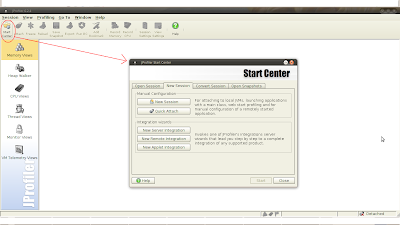
5. Click "New Remote Integration" button.

6 . Now profiled application need to locate. If you are locating application runs in same machine, you have to select "On this computer" option. If you are profiling remotely started application in other machine, you have to select "On a remote computer" option. In this article i will use first option.

7. Now insert your JVM information.

8. Then select profile setting transmission option.

9. Click next button in JProfiler port setting window.

10. Copy option text listed in "perform required modification" window and that need to be copy in your CARBON_HOME/bin/wso2server.sh or .bat file like below.


11. Now start your governance registry and Jprofiler will connect with it.

JProfiler is GUI enabled tool that used to measure performance based measurements such as CPU usage, memory bottlenecks and thread information etc, java based applications. more info
This article will demonstrate how JProfiler used to measure performance statistics in WSO2 Governance Registry. Same time this article applies to all carbon based products in WSO2.
You can download any carbon based servers from wso2.org to execute this article. In here i am using WSO2 Governance Registry.
1. Download WSO2 Governance Registry
2. Download JProfiler from here.
3. Extract Jprofiler zip and if you are windows run jprofiler.exe or if you are in Linux environment run jprofiler.sh in /bin directory.
Now we need to create new jprofiler project to connect with the governance registry server. Below steps will guide you to create new JProfiler project.
4. Open JProfiler start center window by clicking on the start center button.

5. Click "New Remote Integration" button.
6 . Now profiled application need to locate. If you are locating application runs in same machine, you have to select "On this computer" option. If you are profiling remotely started application in other machine, you have to select "On a remote computer" option. In this article i will use first option.

7. Now insert your JVM information.

8. Then select profile setting transmission option.

9. Click next button in JProfiler port setting window.

10. Copy option text listed in "perform required modification" window and that need to be copy in your CARBON_HOME/bin/wso2server.sh or .bat file like below.


11. Now start your governance registry and Jprofiler will connect with it.

